
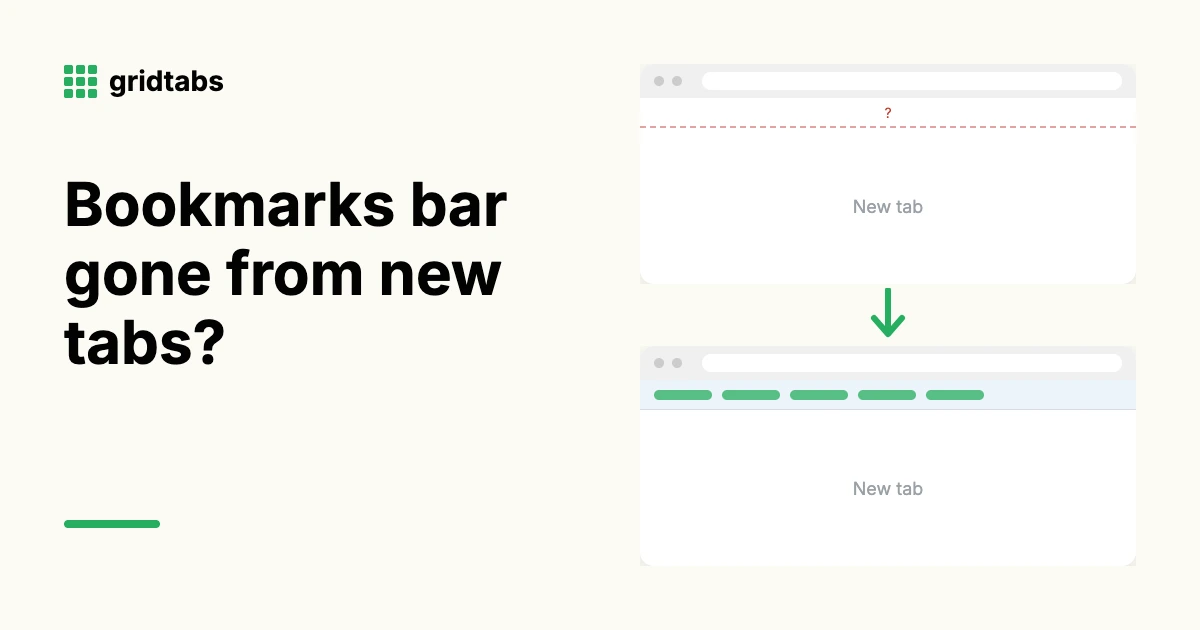
If your Chrome bookmarks bar is missing on the new tab page, your bookmarks are still there. Since Chrome 151, Chrome can hide a bookmarks bar you haven't used recently. To bring it back, go to Settings > Appearance > Bookmarks bar and choose Always show. To hide it everywhere, choose Always hide.
Everything below is as of Chrome 156 (October 2026).
Why did my bookmarks bar disappear from the new tab page?
Your bookmarks bar disappeared because of a design change, not a bug and not data loss. According to Google's Chrome Enterprise release notes, starting in Chrome 151 "the bookmark bar can automatically hide if it is not being used regularly," and Chrome shows a notification that lets you restore it. The feature rolled out gradually, so it may have reached you weeks after 151.
When Chrome hides the bar, a bubble says Your bookmarks bar was hidden because you haven't used it recently, with an Undo button. If you dismissed that bubble, the bar simply stays hidden.
The same release replaced the old Show bookmarks bar on/off switch with a dropdown of three options: Always show, Only show on New Tab page and Always hide. Your bookmarks themselves are untouched. You can still open them from the Bookmarks and lists menu or the Bookmark Manager.
How do I bring the bookmarks bar back?
The fastest fix is to set the bookmarks bar to Always show in Chrome's Appearance settings.
- Click the three-dot menu at the top right of Chrome.
- Click Settings.
- In the left sidebar, click Appearance (or type
chrome://settings/appearancein the address bar). - Find Bookmarks bar and open the dropdown.
- Choose Always show.
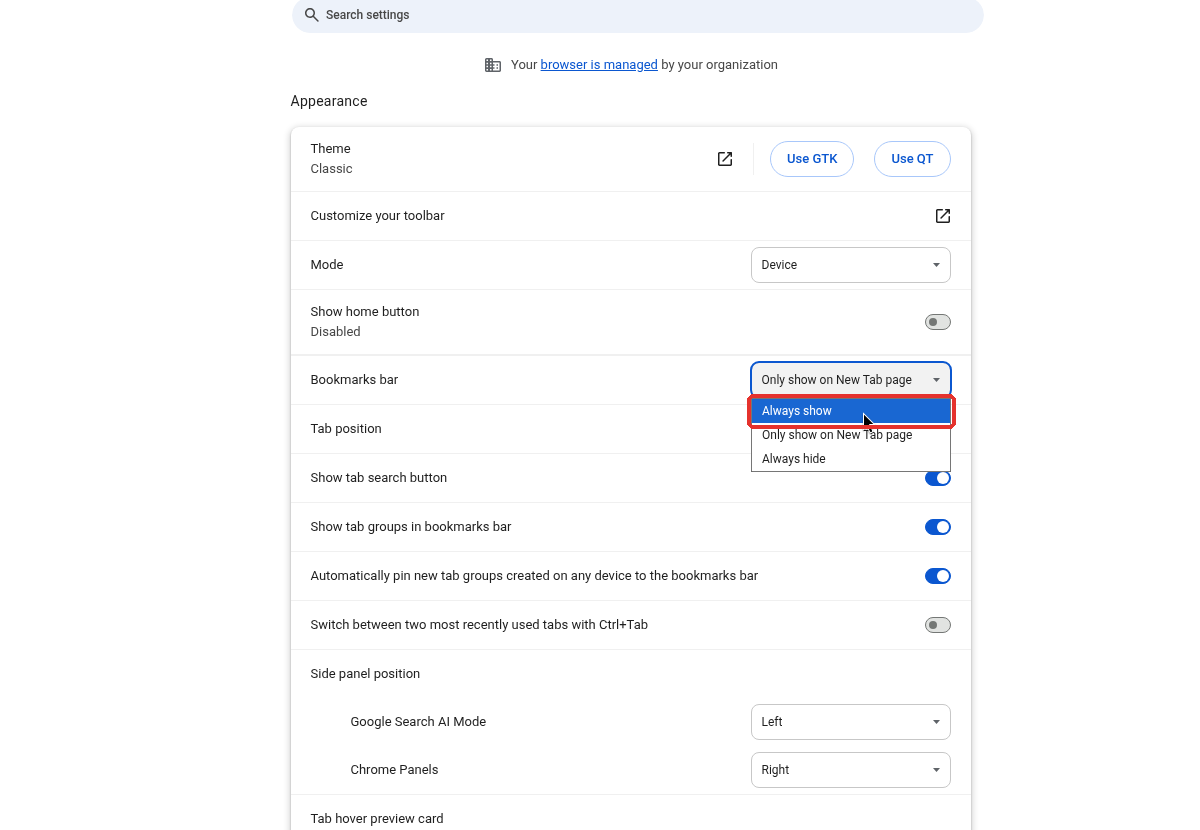
If you only want the bar on new tabs and not on websites, choose Only show on New Tab page in step 5 instead.
You can make the same choice without opening Settings: three-dot menu > Bookmarks and lists > Show bookmark bar, then pick one of the three options. On a Mac the menu items are title-cased (Always Show, Only Show on New Tab Page, Always Hide).
If you just saw the "hidden because you haven't used it recently" bubble, click Undo in that bubble.
How do I hide the bookmarks bar on the new tab page instead?
To hide the bookmarks bar on the new tab page as well as on websites, set it to Always hide.
- Go to Settings > Appearance.
- Open the Bookmarks bar dropdown.
- Choose Always hide.
This is the part that changed most. Before the new dropdown, turning the bar off only hid it on websites, and Chrome kept showing it on the new tab page as long as you had bookmarks. Always hide is the first built-in setting that removes it from new tabs too.
It still won't show or won't hide. What else can I try?
Symptom: Ctrl+Shift+B doesn't do what it used to. Cause: with the new setting, the shortcut only switches between Always show and Always hide. If the bar was on Only show on New Tab page, one press sets it to Always show. Fix: press Ctrl+Shift+B on Windows, Linux and ChromeOS, or Cmd+Shift+B on a Mac, and watch which state you land in. For Only show on New Tab page, use the menu or Settings instead.
Symptom: the dropdown is greyed out and you can't change it. Cause: your organization manages Chrome. According to Google, when an admin enforces the BookmarkBarEnabled policy, the new visibility settings still appear but can't be clicked. Fix: ask your IT admin. A managed setting can't be changed from your side.
Symptom: you can't find the three-option dropdown, only the old Show bookmarks bar switch. Cause: the rollout was gradual, or your Chrome is out of date. Fix: go to three-dot menu > Help > About Google Chrome to update, then restart Chrome.
Symptom: on Chrome 148, the bar showed on every new tab and wouldn't hide. Cause: a Chrome 148 regression forced the bar onto new tab pages, including new tab pages set by extensions. Fix: Google reverted the change in Chrome 148.0.7778.179 (May 2026). Updating Chrome is enough.
A better way to keep your favorite sites always visible on a new tab
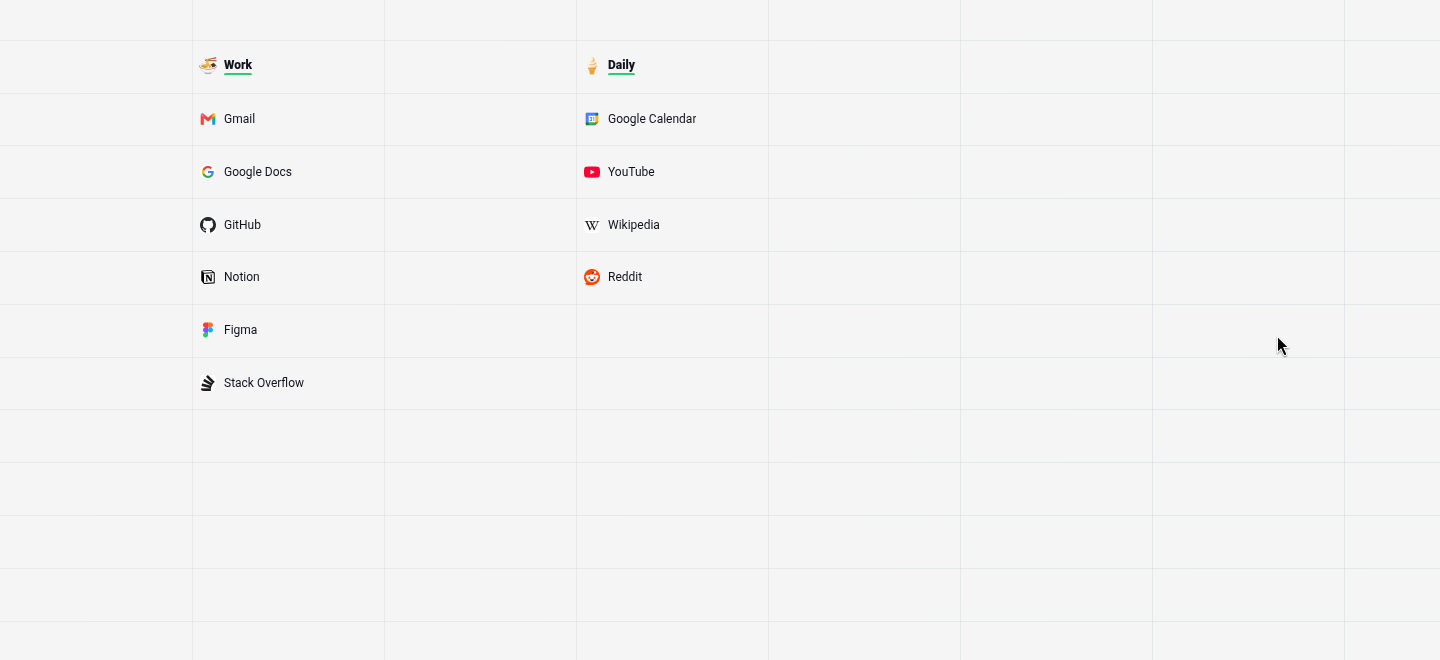
If you want your most-used sites in view every time you open a tab, a single strip of bookmarks is a tight place to keep them. The bookmarks bar is one row under the address bar, and anything that doesn't fit drops into a » menu. The new tab page has a whole screen of room.
I built gridtabs, a new tab extension for Chrome, for exactly this, so weigh my opinion accordingly. It turns the new tab into a grid that holds dozens to over a hundred sites on one screen. The one thing I'd do is drag the bookmarks you actually use straight from Chrome into the grid. After that, they're on every new tab, whatever your bookmarks bar setting is. gridtabs doesn't restore Chrome's bookmarks bar. That part is the Settings fix above.
For more ways to fill a new tab with your sites, see <!-- 补链:best-speed-dial-extensions-chrome -->the best speed dial extensions for Chrome. If your bookmarks have grown out of control, see <!-- 补链:organize-too-many-bookmarks -->how to organize too many bookmarks.
FAQ
Did Chrome delete my bookmarks?
No. When the bookmarks bar disappears from the new tab page, Chrome has only hidden the bar. Your bookmarks are still saved. Open the three-dot menu > Bookmarks and lists > Bookmark Manager to see all of them, or set Settings > Appearance > Bookmarks bar to Always show to bring the bar back.
Why does the bookmarks bar show on websites but not on the new tab page?
That usually means Chrome auto-hid the bar on the new tab page or the setting changed. Check Settings > Appearance > Bookmarks bar. Always show displays it everywhere, Only show on New Tab page limits it to new tabs, and Always hide removes it everywhere. If an extension replaces your new tab page, that page controls what you see.
Why doesn't Ctrl+Shift+B work on the new tab page anymore?
It still works, but it now switches only between Always show and Always hide. So it can't put the bar in the new-tab-only state. Use Cmd+Shift+B on a Mac. If you want the bar on new tabs only, pick Only show on New Tab page in Settings > Appearance > Bookmarks bar.
Want your favorite sites on every new tab? Add gridtabs to Chrome