Most lost Chrome bookmarks are not gone. Before you reinstall anything or download a recovery tool, check three things in this order: that you're in the right Chrome profile and signed in to the right Google Account, that the bookmarks aren't still in your account or on another device, and whether Chrome's own backup file, Bookmarks.bak, still holds an older copy. If you deleted them yourself, the backup file is your best chance. Chrome's help page says plainly that after you delete a bookmark, you can't get it back from Chrome itself, so move quickly before the backup is replaced.
Did Chrome actually delete my bookmarks?
Often it didn't. Bookmarks that seem to vanish are usually hidden, in a different profile, or left behind in your Google Account. Two quick checks tell you which:
- Search for one you remember. Type
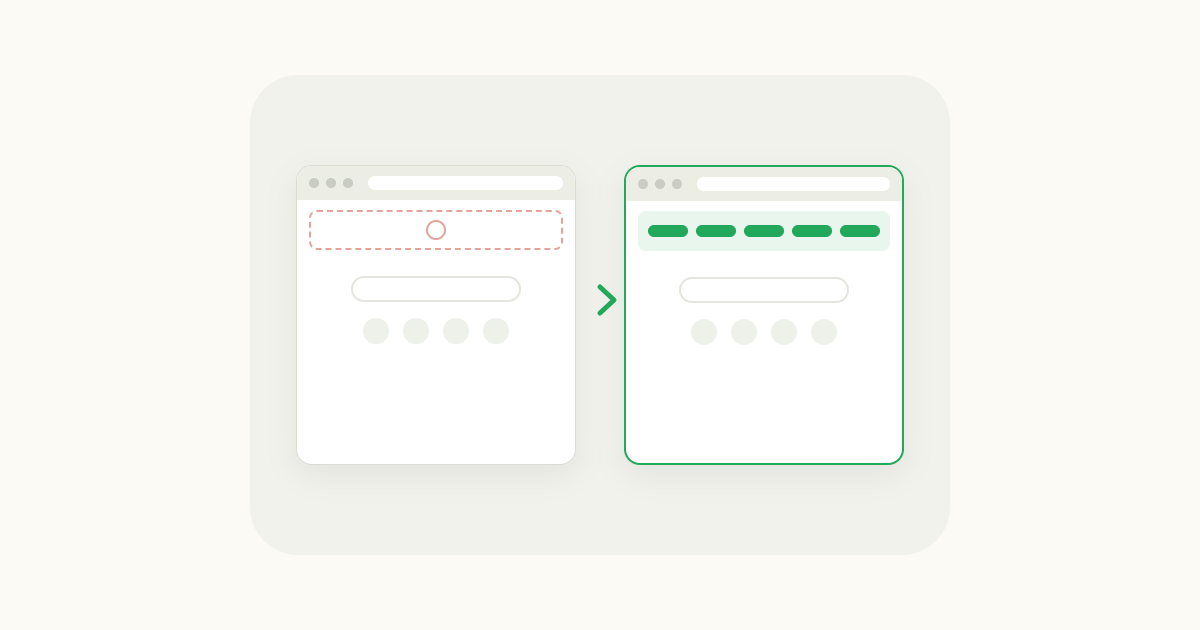
@bookmarksin the address bar, press Tab or Space, and type a word from the bookmark's name. If it shows up, your bookmarks are still there. - Open the Bookmark Manager. Click the three-dot menu > Bookmarks and lists > Bookmark Manager. If your folders are there but the bar under the address bar is empty, it's a display setting, not data loss. Chrome can now hide a bookmarks bar you haven't used recently, and that article shows how to bring it back.
If the Bookmark Manager is empty too, check these two next:
- You're in a different profile. Each Chrome profile keeps its own bookmarks, history and passwords. Click your profile icon at the top right and switch to the profile you normally use. A new profile created by accident, or by someone else on the same computer, starts with no bookmarks.
- You signed out. According to Google, when you sign out of Chrome, your info "is kept safe in your Google Account and removed from the device." The bookmarks aren't lost; they're in your account. Sign back in with the same Google Account and they come back.
How do I recover Chrome bookmarks from my Google Account or another device?
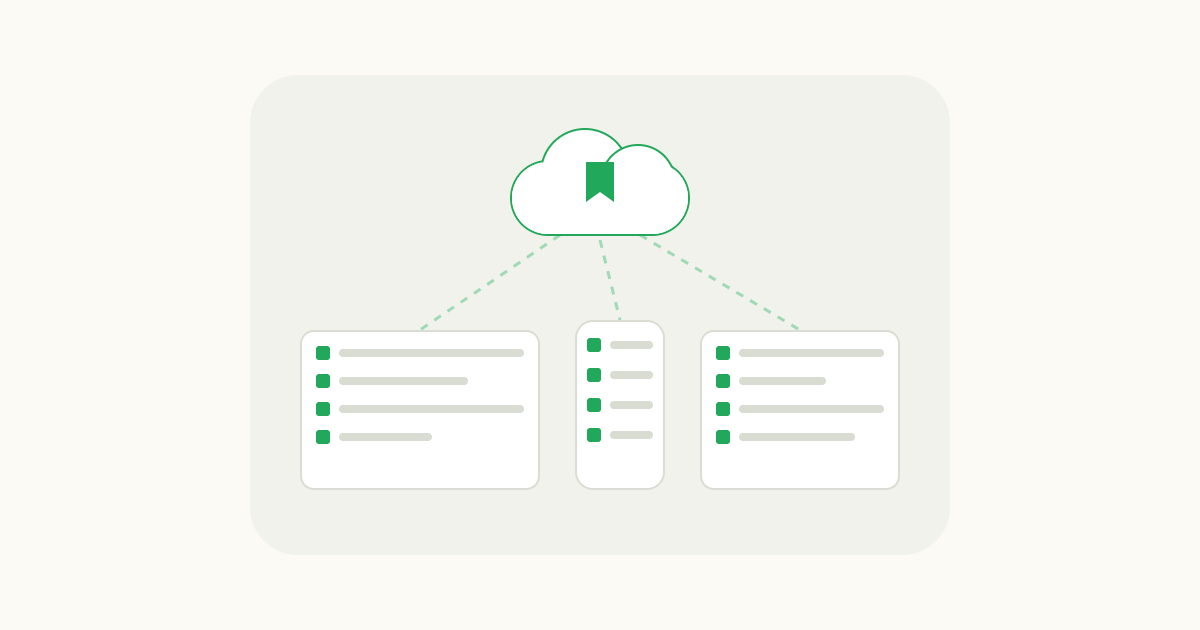
If you were signed in when you saved them, your bookmarks are most likely in your Google Account. Google's help says that when you sign in to Chrome and save something new, like a bookmark, Chrome saves it in your Google Account.
- Click your profile icon at the top right and sign in to Chrome with the account you used before. Check the email address carefully. A work and a personal account look the same at a glance.
- Give it a minute, then open the Bookmark Manager.
- If you set a sync passphrase, enter it. Chrome can't show your account's bookmarks on this device until you do.
- Still nothing? Go to the three-dot menu > Settings > You and Google, select your account name, and check that bookmarks are among the things Chrome saves to your account.
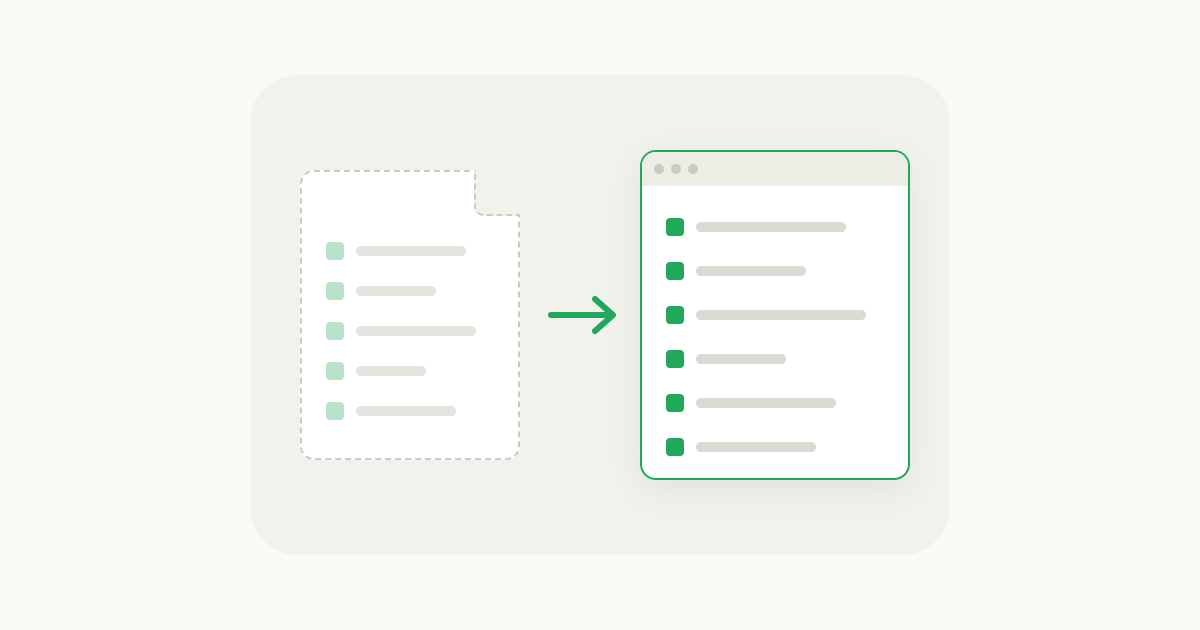
If another computer, laptop or a second Chrome profile still has the bookmarks, copy them over as a file. This works even when sync is off:
- On the device that has them, open the three-dot menu > Bookmarks and lists > Bookmark Manager.
- At the top, click More (the three dots) > Export Bookmarks. Chrome saves an HTML file.
- Move that file to the computer that lost its bookmarks.
- There, open the three-dot menu > Bookmarks and lists > Import bookmarks and settings, click Choose file, pick the HTML file, click Open, then Done.
How do I restore Chrome bookmarks from Bookmarks.bak?
Chrome stores your bookmarks in a file named Bookmarks inside your profile folder. The first time it saves a bookmark change in a session, it copies the existing file to Bookmarks.bak first. So the backup holds your bookmarks as they were before the latest round of changes, and it can be replaced the next time Chrome saves a bookmark change. If you deleted bookmarks by mistake, do this before you add, move or delete any others.
Find your profile folder. Type chrome://version in the address bar and look at Profile Path. That's the folder you need. If you only have one profile, it's usually here:
| System | Default profile folder |
|---|---|
| Windows | %LOCALAPPDATA%\Google\Chrome\User Data\Default |
| macOS | ~/Library/Application Support/Google/Chrome/Default |
| Linux | ~/.config/google-chrome/Default |
Other profiles live next to Default in folders named like Profile 1.
Swap in the backup:
- Note the Profile Path, then quit Chrome completely. Close every window. On a Mac, use Chrome > Quit Google Chrome.
- Copy the whole profile folder somewhere safe. If anything goes wrong, you can put it back.
- In the profile folder, rename
BookmarkstoBookmarks.old. - Make a copy of
Bookmarks.bakand rename the copy toBookmarks. On Windows, turn on file name extensions in File Explorer first, so you can see the.bakending and don't end up withBookmarks.bak.bak. - Open Chrome and check the Bookmark Manager.
If your bookmarks are back, export them to an HTML file right away (Bookmark Manager > More > Export Bookmarks), so you have a copy that Chrome won't overwrite. If the backup turns out to be just as empty, rename Bookmarks.old back to Bookmarks and move on to the next section.
This backup only covers the bookmarks file on this computer. Bookmarks that Chrome keeps for your Google Account are stored separately, so for those, the account steps above are the way back.
What if none of that works?
You have three options left, roughly in order of how often they work:
- Your computer's own backups. If you use Time Machine on a Mac or File History on Windows, restore the
Bookmarksfile in your profile folder from a date before you lost them. Quit Chrome first, and keep the current file asBookmarks.oldin case you need it. - An old export. Search your Downloads and Documents for a file named like
bookmarks_<date>.html, which is what Chrome's export creates. Import it with the steps above. - Your history. Deleting bookmarks doesn't delete your browsing history. Open the three-dot menu > History > History and search for the sites you remember. You can bookmark the important ones again from there.
I'd skip the "Chrome bookmarks recovery" programs. The backup file above is something you can restore yourself, and a tool that reads your Chrome profile folder can also see your history and other browsing data.
After you get them back: keep everyday sites where you can see them
Once your bookmarks are back, make a fresh export every so often. It takes ten seconds and gives you a file no sync mistake can touch.
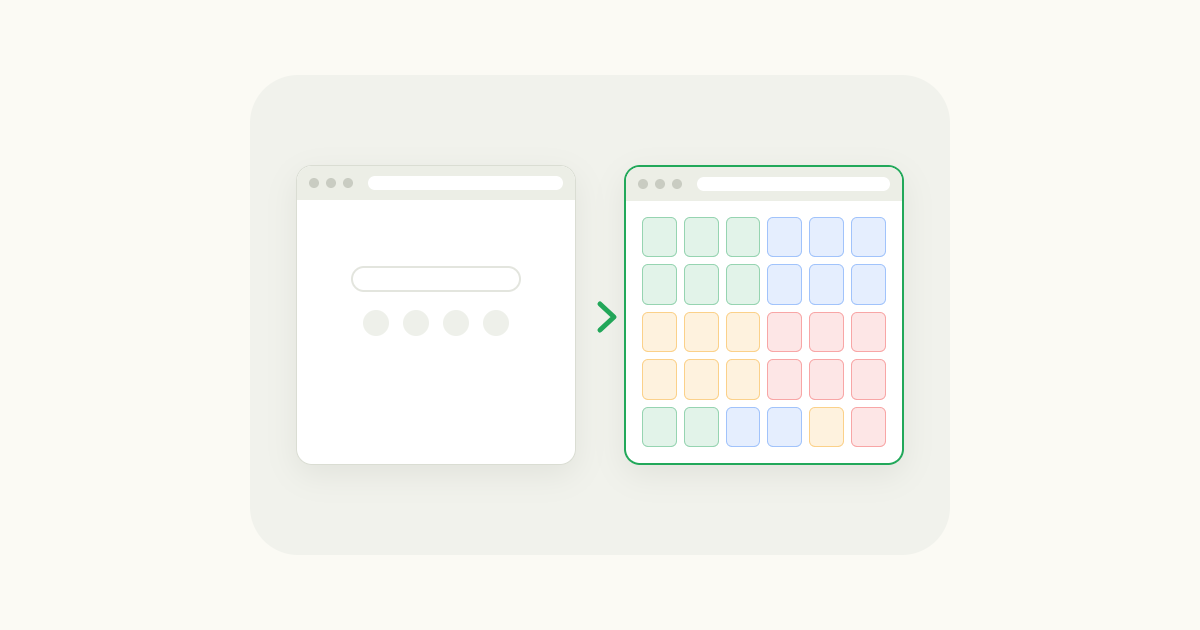
The bookmarks you actually open every day deserve a better spot than a folder you rarely look at. I built gridtabs, a new tab extension for Chrome and Edge, for this, so weigh my opinion accordingly. It turns the new tab page into a grid that holds dozens to over a hundred sites on one screen. You can drag bookmarks straight from Chrome into the grid, color-code them, and spread them across sheets for work and personal use. If you sign in with Google, the same grid shows up on every computer where you use gridtabs, separately from Chrome's own bookmarks. gridtabs doesn't restore bookmarks Chrome has deleted. That part is the steps above.
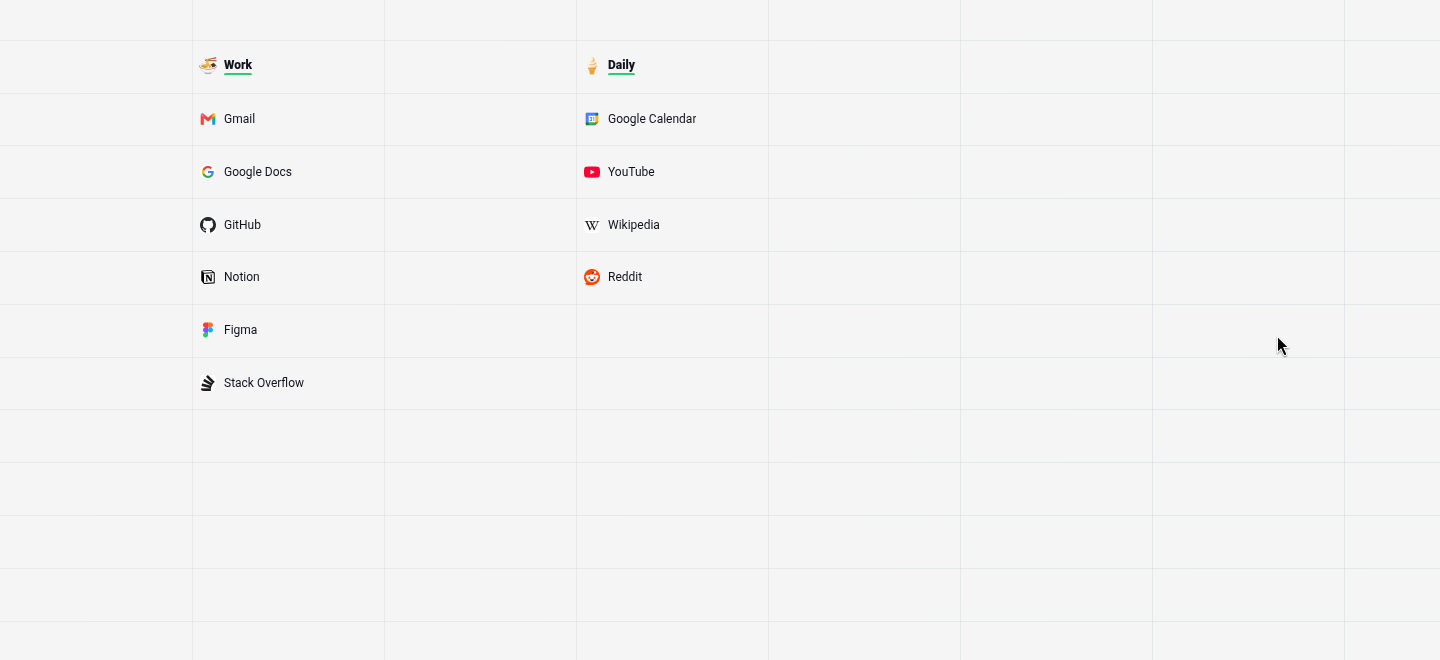
Add gridtabs to Chrome. For other ways to set up a new tab, see how to customize the Chrome new tab page. If you'd rather keep bookmarks in a web app you can reach from any browser, see the best online bookmark managers.
FAQ
Did Chrome delete my bookmarks, or are they just hidden? Usually they're hidden or in another place. Type @bookmarks in the address bar and search for one you remember, or open the three-dot menu > Bookmarks and lists > Bookmark Manager. If they're there, only the bookmarks bar is hidden. If the manager is empty, check that you're in your usual Chrome profile and signed in to the same Google Account as before.
Where does Chrome store bookmarks on my computer? In a file named Bookmarks inside your Chrome profile folder, next to a backup called Bookmarks.bak. Type chrome://version in the address bar to see the exact Profile Path. By default it's %LOCALAPPDATA%\Google\Chrome\User Data\Default on Windows, ~/Library/Application Support/Google/Chrome/Default on macOS, and ~/.config/google-chrome/Default on Linux.
How do I get my Chrome bookmarks on another device? Sign in to Chrome with the same Google Account on both devices. Bookmarks you save while signed in are stored in your Google Account and show up wherever you sign in. Without signing in, export them from the Bookmark Manager as an HTML file and import it on the other device through Bookmarks and lists > Import bookmarks and settings.