To customize the Chrome new tab page, open a new tab and click Customize Chrome at the bottom right. The panel that opens lets you change the theme and background, pick a browser color, switch between My shortcuts and Most visited sites, turn cards on or off, and hide the footer. That is the full list of what Chrome lets you change. If you want something else on the page, such as a grid of dozens of your own sites, you need a new tab extension.
What can I change on Chrome's new tab page without an extension?
Without an extension, you can change how the page looks and which few sites sit under the search box, but not the layout. According to Google's Chrome Help, these options need you to be signed in to your Google Account with Google as your default search engine.
Every option below starts the same way: open a new tab and click Customize Chrome at the bottom right.
Background and theme
- Under Appearance, select Change theme.
- Pick a theme from the gallery, or select Upload an image to use your own picture.
- To get a new background every day, click a collection and turn on Refresh daily.
To undo all of this, select Reset to Default Chrome at the bottom of the panel.
Browser color and dark mode
Under Appearance, pick one of the color options. Chrome suggests a color that matches your theme, and you can change it. In the same section, choose Light, Dark or Device to control dark mode.
Shortcuts under the search box
- Under Shortcuts, choose My shortcuts to pick the sites yourself, or Most visited sites to let Chrome fill them in from your history.
- To remove a single site, point to its icon, click the three-dot More icon, then choose Edit shortcut or Remove.
- To hide the row entirely, turn off Show shortcuts.
Cards and footer
Cards show things like recent searches and tabs from your other devices. Click Cards, then Customize Cards, and select which ones to show or hide. Under Footer, turn Show footer on New Tab page on or off, or right-click the footer and select Hide footer on New Tab page.
What you can't do: move the search box, make the shortcut row bigger, add folders, or put anything else on the page. The shortcuts stay a single small row of icons. If that's all you need, you're done.
How do I change the new tab page with an extension?
To replace the whole page, install a new tab extension from the Chrome Web Store. Once it's installed, every new tab opens the extension's page instead of Chrome's.
- Search the Chrome Web Store for "new tab" or "speed dial" and pick one.
- Click Add to Chrome. If the extension asks for permissions, click Add extension.
- Open a new tab to see the new page.
Two limits from Chrome itself are worth knowing. An extension can only replace one of Chrome's pages, and in Incognito windows, extensions can't override the New Tab page, so Incognito always shows Chrome's own page. A new tab can only show one page, so if you install a second new tab extension, open a tab and check which one you actually got.
Why did my new tab page change by itself?
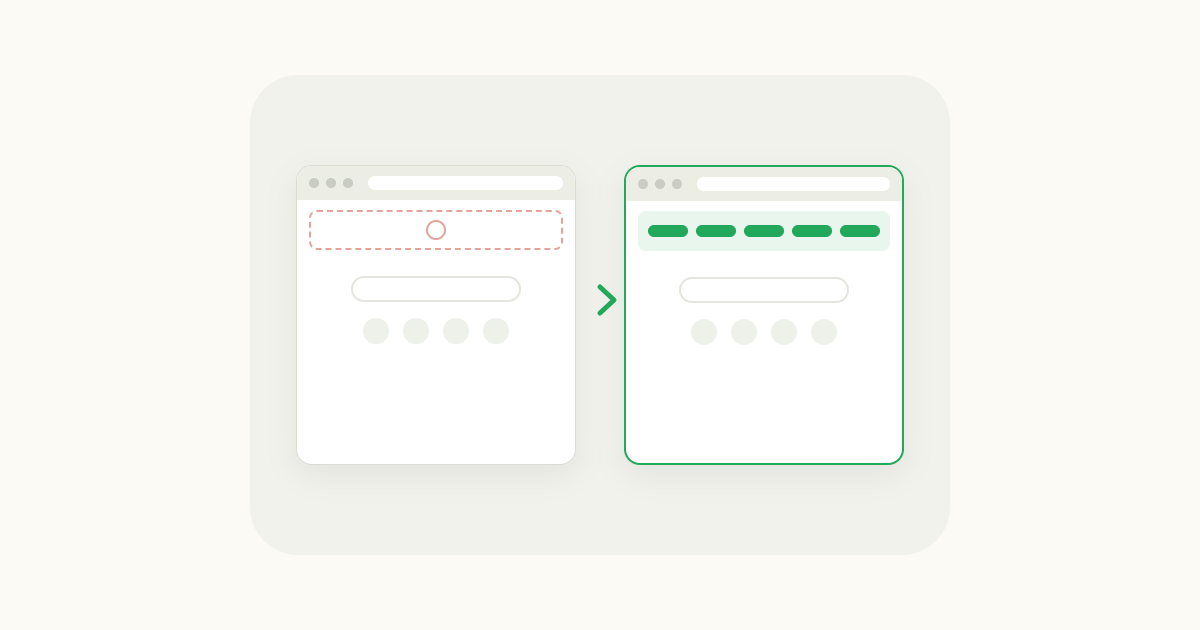
If your new tab page changed without you touching Chrome's settings, an extension almost certainly took it over. Chrome shows which one in Settings.
- Click the three-dot menu at the top right, then Settings.
- Look for a box that says "An extension, [extension name], is controlling this setting."
If you don't remember installing that extension, remove it (next section). While you're in Settings, check your default search engine as well: according to Google, an extension can change your new tab page and your search engine together.
How do I go back to Chrome's default new tab page?
To get Chrome's own new tab page back, remove or turn off the extension that replaced it. Chrome then restores your previous setting.
- Click the three-dot menu at the top right.
- Select Extensions, then Manage extensions.
- On the new tab extension, select Remove, then Remove again to confirm. If you might want it later, switch its toggle off instead.
- Open a new tab. Chrome's page, with your theme and shortcuts, is back.
If the page you get still isn't Chrome's, another extension is controlling it. Repeat the check in Settings above.
What should I look for in a new tab extension?
Start by counting the sites you open on a normal day, then pick the extension built for that number.
- How many sites fit on one screen. Chrome's own shortcuts are a single row of icons. Classic speed dial extensions show a dozen or two large tiles. Grid-style pages fit far more. If you open 30 sites a day, a page that shows 12 means scrolling or folders again.
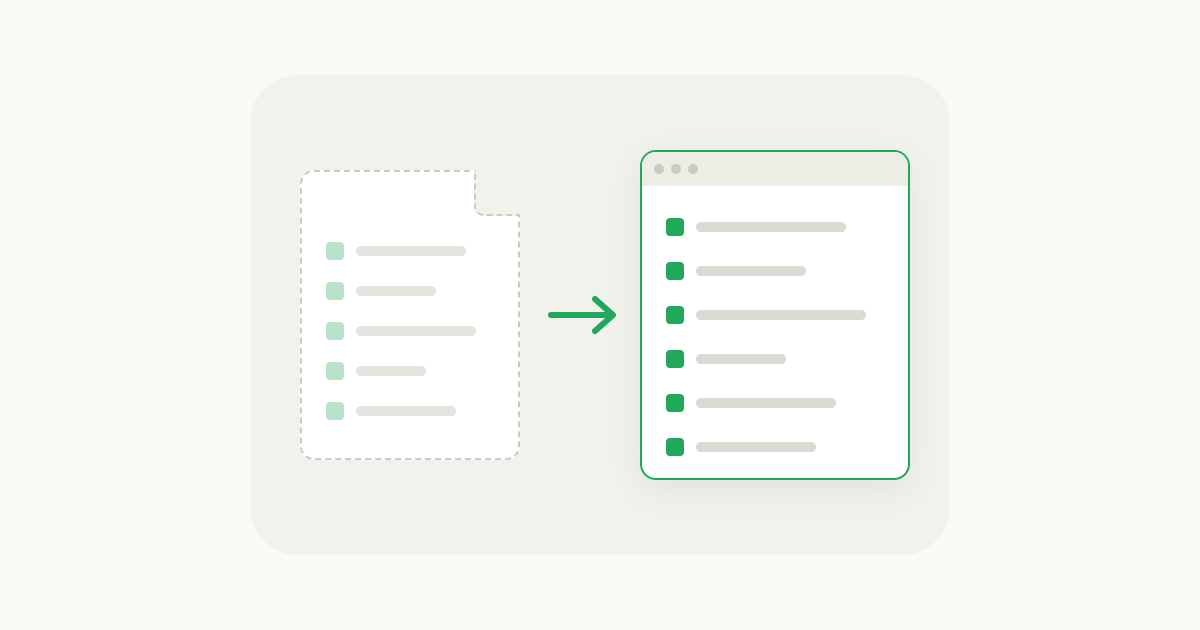
- How you add sites. Typing URLs into a settings page gets old quickly. Look for a toolbar button that saves the page you're on, or a way to bring in the bookmarks you already have.
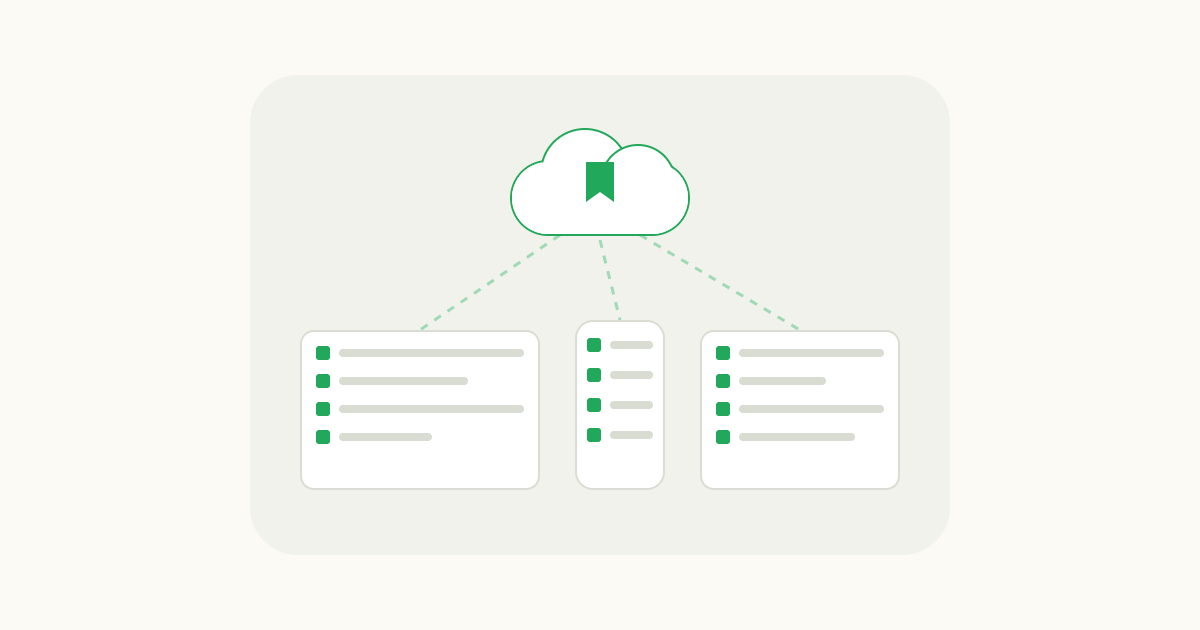
- Sync. If you use Chrome on more than one computer, check that the page follows you, and what account it needs.
- What else is on the page. Some extensions add weather, to-do lists, news feeds and quotes. That's great if you want a dashboard and distracting if you just want your sites.
- Speed. A new tab opens dozens of times a day. A page that loads from a server each time will make you wait.
A simple grid for the sites you open every day
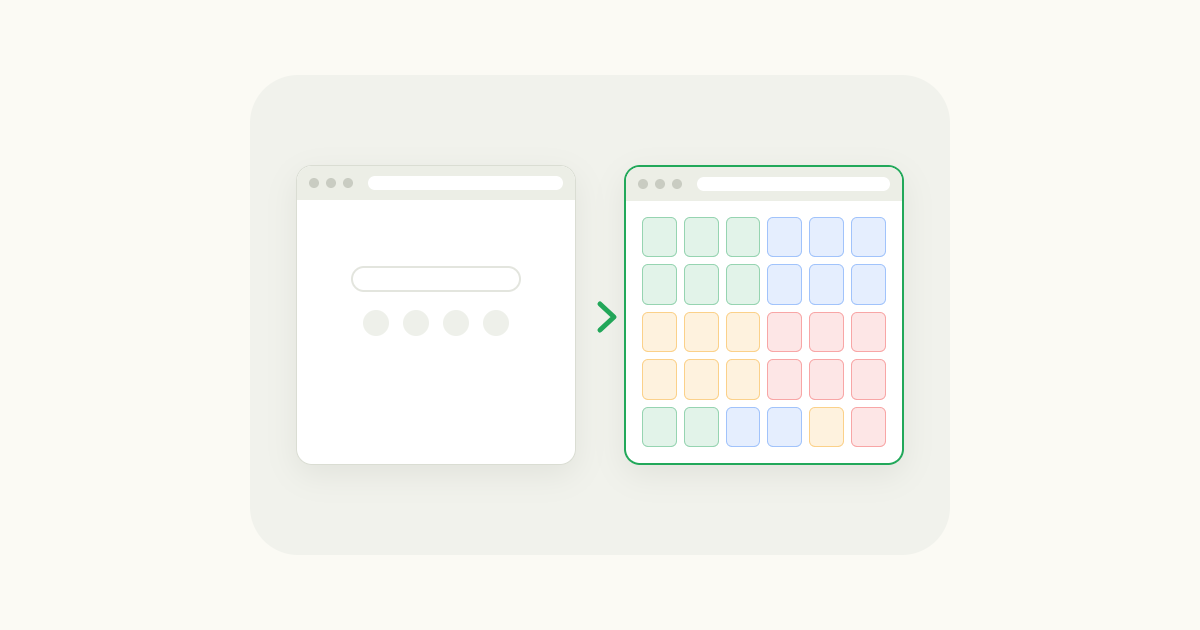
If what you want on the new tab is your own sites, all of them, in one view, that's the case I built gridtabs for. It turns the new tab into a grid that holds dozens to over a hundred sites on one screen, closer to a spreadsheet than a row of big tiles.
The first thing I'd do after installing it is drag your most-used Chrome bookmarks straight into the grid, then save anything new with one click on the toolbar button as you browse. You can color tiles to group them, split work and personal sites onto separate sheets, and pick a Light, Dark or ZEN theme. Sign in with Google if you want the same grid on another computer. It works in Chrome and Edge, and the free version holds 30 tiles. Add gridtabs to Chrome
It's the wrong pick if you mainly want widgets like weather and to-dos on your new tab, or if you browse mostly on your phone. For those, a dashboard-style new tab extension with widgets suits you better.
If you're keeping lots of bookmarks and losing track of them, see the best online bookmark managers. If your bookmarks bar has disappeared from the new tab page, that's a separate setting: see how to bring the bookmarks bar back.
FAQ
How do I change the new tab page in Chrome? Open a new tab and click Customize Chrome at the bottom right. There you can change the theme, background, browser color, shortcuts, cards and footer. To replace the page completely, install a new tab extension from the Chrome Web Store.
Why did my new tab page change by itself? An extension has most likely taken it over. Open Chrome Settings and look for a box saying an extension is controlling this setting. Remove that extension from Extensions > Manage extensions to get your previous page back.
Can I customize the Chrome new tab page without installing an extension? Yes, but only within Chrome's options: theme and background, browser color, dark mode, a row of shortcuts, cards and the footer. Changing the layout or adding many sites needs an extension.
How do I get rid of the shortcuts on the new tab page? Click Customize Chrome at the bottom right of a new tab and turn off Show shortcuts. To remove just one site, point to it, click More, then Remove.